








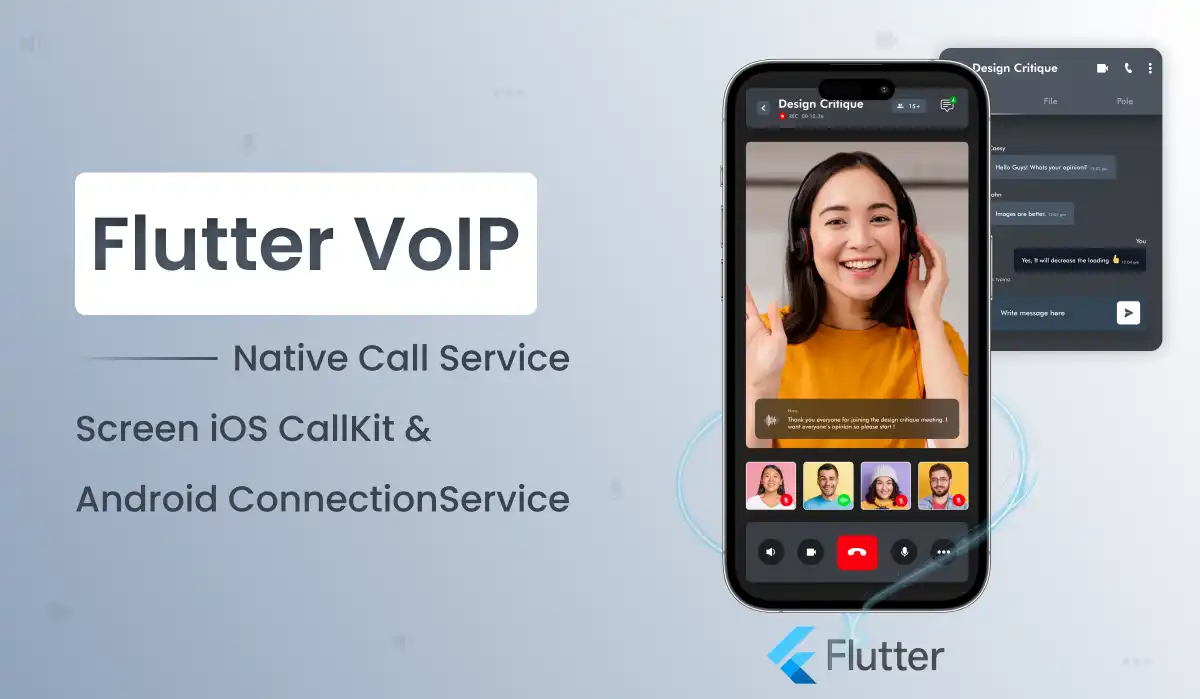
When a Flutter VoIP incoming call arrives, your users expect the same full-screen native ring UI as a regular phone call — even when the app is killed. This is the complete implementation guide covering iOS CallKit with PushKit and Android ConnectionService with FCM, exactly how Primocys built it in WasaaChat and ChatWave.
What this guide covers The native incoming call screen — the one that looks exactly like a regular phone call — requires iOS CallKit + PushKit on Apple and ConnectionService / Telecom API + FCM data message on Android. A normal push notification is not enough on either platform: on iOS, VoIP push via PushKit wakes a killed app; on Android, an FCM data message (not notification message) fires the background service. The recommended Flutter package is flutter_callkit_incoming — it handles both platforms behind one Dart API. This guide covers the full stack: server-side push setup, native platform config, Dart event handling, custom ringtone, and the iOS 13 rule that crashes your app if you miss it. Built by Primocys — Flutter Top Developer 2024 & 2026 →
Most chat or VoIP apps handle calls inside the app perfectly — a custom flutter voip incoming call screen, nice animations, proper WebRTC media. The problem comes when the app is in the background or completely killed. The user’s phone rings silently (or not at all), they miss the call, and they blame the app. Solving this correctly on both iOS and Android requires integrating directly with each platform’s native telephony framework.
Primocys has implemented the flutter voip incoming call screen in production for WasaaChat and ChatWave — both live on the App Store and Google Play, both with full VoIP calling using self-hosted WebRTC. This guide covers exactly what we built, the mistakes we initially made, and the code that ended up in production.
iOS CallKit vs Android ConnectionService — VoIP Architecture Overview
The ios callkit flutter implementation and Android ConnectionService are fundamentally different architectures — they need to be understood separately before you can implement them together in a Flutter VoIP app.
- Push type — VoIP push via PushKit (PKPushType.voIP)
- UI framework — CallKit — CXProvider shows native lock screen
- When killed — PushKit wakes app, must call reportNewIncomingCall immediately
- iOS 13 rule — MUST report call before completion() or OS kills app
- Ringtone — config.ringtoneSound = “ring.caf”
- China — CallKit banned — need fallback for CN App Store
- Push type — FCM data message (NOT notification message)
- UI framework — Telecom ConnectionService or full-screen intent
- When killed — FCM data message fires background service isolate
- Android 14+ — USE_FULL_SCREEN_INTENT requires runtime permission
- Ringtone — File in android/app/src/main/res/raw/
- OEMs — Xiaomi/OnePlus may kill background — guide users to whitelist
VoIP Push Notification Flutter — Full Signal Flow to Native Ring Screen
Most Flutter VoIP implementations break at the same step. This is the complete signal flow — server to APNs/FCM to PushKit/background isolate to native ring screen.
Your Server
Sends VoIP push
APNs (VoIP cert)
PushKit push type
PushKit wakes app
Even if killed
reportNewIncomingCall
BEFORE completion()
Native CallKit UI
Lock screen ring
Dart event
onAccept / onDecline
Your Server
FCM data message
FCM data payload
“data” key only
Background isolate
Fires even if killed
Foreground service
+ ConnectionService
Native call UI
Full-screen ring
Dart event
onAccept / onDecline
Why a regular push notification will not work: A standard APNs push on iOS shows a banner notification — it does not wake a killed app or display the native call UI. Only a PushKit VoIP push (voip push type with a separate VoIP certificate) wakes the app and lets CallKit display the lock screen. On Android, a standard FCM notification message also doesn’t reliably wake a killed app on modern Android versions with battery optimization. Only an FCM
data message fires the background handler. This distinction — VoIP push on iOS, data message on Android — is the single most common reason VoIP calls fail to ring when the app is killed.
Flutter Callkit Incoming Package — Choosing the Right One
The wrong VoIP package choice breaks incoming calls on killed apps. Here’s how flutter_callkit_incoming, flutter_callkeep, and webtrit_callkeep actually differ in production.
flutter_callkit_incoming
Full-featured: iOS CallKit, Android full-screen UI and ConnectionService, PushKit support in AppDelegate, custom ringtones, avatars, missed call notifications. Works with any VoIP backend (WebRTC, Agora, Twilio).
flutter_callkeep
Wraps iOS CallKit and Android ConnectionService behind one Dart interface. Simpler API than flutter_callkit_incoming, good for apps that need both incoming and outgoing system call integration.
webtrit_callkeep
Production-grade federated plugin used in real VoIP phone apps. Kotlin/Swift native, dedicated background process on Android, PushKit on iOS. Higher complexity, deeper OS integration.
For this guide we use flutter_callkit_incoming — it covers 95% of real-world flutter voip app development use cases with the least native code you need to write yourself.
Step 1 — Add the Package
# pubspec.yaml — add to dependencies
dependencies:
  flutter:
    sdk: flutter

  flutter_callkit_incoming: ^2.0.1    # latest stable

  firebase_core: ^3.0.0               # for FCM on Android

  firebase_messaging: ^15.0.0          # FCM data messages

  uuid: ^4.0.0                         # for generating call UUIDs
Step 2 — Build the ZPL label string
2a — Add Background Modes in Xcode In Xcode: select Runner → Signing & Capabilities → + Capability → Background Modes. Enable: Voice over IP, Remote notifications, and Background fetch. Or add directly to Info.plist:
<!— Add inside the root <dict> —>

<key>UIBackgroundModes</key>
<array>
  <string>voip</string>
  <string>remote-notification</string>
  <string>processing</string>
</array>
2b — PushKit VoIP Flutter iOS — AppDelegate.swift
import UIKit
import Flutter
import PushKit
import CallKit
import flutter_callkit_incoming

@UIApplicationMain
@objc class AppDelegate: FlutterAppDelegate, PKPushRegistryDelegate,
                            CallkitIncomingAppDelegate {

  override func application(
    _ application: UIApplication,
    didFinishLaunchingWithOptions launchOptions: [UIApplication.LaunchOptionsKey: Any]?
  ) → Bool {
    GeneratedPluginRegistrant.register(with: self)

    // Register for VoIP push notifications via PushKit
    let mainQueue = DispatchQueue.main
    let voipRegistry = PKPushRegistry(queue: mainQueue)
    voipRegistry.delegate = self
    voipRegistry.desiredPushTypes = [PKPushType.voIP]

    return super.application(application,
                didFinishLaunchingWithOptions: launchOptions)
  }

  // Called when PushKit delivers a new VoIP token
  func pushRegistry(_ registry: PKPushRegistry,
                  didUpdate credentials: PKPushCredentials,
                  for type: PKPushType) {
    let deviceToken = credentials.token
                      .map { String(format: "%02x", $0) }
                      .joined()
    // Send this token to your server — it's what you push to
    SwiftFlutterCallkitIncomingPlugin.sharedInstance?
      .setDevicePushTokenVoIP(deviceToken)
  }

  // ⚠️ iOS 13+ CRITICAL: Called when VoIP push arrives — app may be killed
  func pushRegistry(_ registry: PKPushRegistry,
                  didReceiveIncomingPushWith payload: PKPushPayload,
                  for type: PKPushType,
                  withCompletionHandler completion: @escaping () → Void) {
    let dict = payload.dictionaryPayload

    // Extract call data from push payload
    var data = flutter_callkit_incoming.Data(
      id: dict["uuid"] as? String ?? UUID().uuidString,
      nameCaller: dict["caller_name"] as? String ?? "Unknown",
      handle: dict["caller_number"] as? String ?? "",
      type: 0  // 0 = audio, 1 = video
    )
    data.appName = "WasaaChat"
    data.avatar = dict["caller_avatar"] as? String

    // MUST call this BEFORE completion() — iOS 13+ requirement
    SwiftFlutterCallkitIncomingPlugin.sharedInstance?
      .showCallkitIncoming(data, fromPushKit: true)

    // Completion can be called after (small delay is acceptable)
    DispatchQueue.main.asyncAfter(deadline: .now() + 1.5) {
      completion()
    }
  }
}
⚠️ The iOS 13 Rule — This Will Crash Your App if Missed Since iOS 13, if your app receives a PushKit VoIP push and does not immediately report a new incoming call to CallKit (via reportNewIncomingCall() or the equivalent plugin method), iOS will terminate your app and invalidate your VoIP push token. You will then stop receiving VoIP pushes entirely until the token is refreshed. Always call showCallkitIncoming(data, fromPushKit: true) synchronously inside didReceiveIncomingPushWithPayload, before the completion() handler.
2c — Custom Ringtone on iOS
Add your ringtone file (must be .caf format) to the Xcode project under ios/Runner/. Convert from MP3 or WAV using:
afconvert -f caff -d LEI16 ringtone.mp3 ringtone.caf. Then reference it in the call data:
// After creating the Data object, set the ringtone name (without .caf)
data.ringtoneSound = "custom_ring"  // looks for custom_ring.caf in bundle

// If ringtoneSound is nil or not found, iOS uses the system default ring
Step 3 — Android ConnectionService Flutter VoIP (Manifest + Permissions)
<!— Permissions required for VoIP call screen —>
<uses-permission android:name="android.permission.RECEIVE_BOOT_COMPLETED"/>
<uses-permission android:name="android.permission.VIBRATE"/>
<uses-permission android:name="android.permission.USE_FULL_SCREEN_INTENT"/>
<uses-permission android:name="android.permission.FOREGROUND_SERVICE"/>
<uses-permission android:name="android.permission.FOREGROUND_SERVICE_PHONE_CALL"/>
<uses-permission android:name="android.permission.MANAGE_OWN_CALLS"/>
<uses-permission android:name="android.permission.READ_PHONE_STATE"/>
<uses-permission android:name="android.permission.RECORD_AUDIO"/>
<uses-permission android:name="android.permission.MODIFY_AUDIO_SETTINGS"/>

<!— Inside <application> tag — register the plugin service —>
<service
  android:name="com.hiennv.flutter_callkit_incoming.CallkitIncomingService"
  android:exported="false"
  android:foregroundServiceType="phoneCall"/>
Android 14+ Runtime Permission
import 'package:permission_handler/permission_handler.dart';

// Android 14+ requires explicit permission for full-screen intents
Future<void> requestCallPermissions() async {
  if (Platform.isAndroid) {
    await [
      Permission.phone,
      Permission.microphone,
      Permission.notification,
    ].request();
  }
}
Custom Ringtone on Android
Place your ringtone audio file in android/app/src/main/res/raw/custom_ring.mp3 (or .ogg). Reference it by filename without extension in the Dart code below.
Step 4 — Dart Implementation (The Core Logic)
import 'dart:io';
import 'package:flutter_callkit_incoming/flutter_callkit_incoming.dart';
import 'package:uuid/uuid.dart';

class VoIPService {
  static final Uuid _uuid = const Uuid();

  /// Call this from main() or your FCM background message handler
  static Future<void> showIncomingCall({
    required String callerName,
    required String callerNumber,
    String? callerAvatar,
    String? callUuid,
    bool isVideo = false,
  }) async {
    final uuid = callUuid ?? _uuid.v4();

    final params = CallKitParams(
      id: uuid,
      nameCaller: callerName,
      handle: callerNumber,
      avatar: callerAvatar,
      type: isVideo ? 1 : 0,    // 0 = audio, 1 = video
      textAccept: 'Accept',
      textDecline: 'Decline',
      duration: 30000,           // 30 seconds ring timeout

      // Missed call notification (shown if user doesn't answer)
      missedCallNotification: const NotificationParams(
        showNotification: true,
        isShowCallback: true,
        subtitle: 'Missed call',
        callbackText: 'Call back',
      ),

      // Android-specific params
      android: const AndroidParams(
        isCustomNotification: true,
        isShowLogo: false,
        ringtonePath: 'system_ringtone_default', // or 'custom_ring' from res/raw/
        backgroundColor: '#0a0e1e',
        actionColor: '#6d28d9',
        textColor: '#ffffff',
        incomingCallNotificationChannelName: 'Incoming Call',
      ),

      // iOS-specific params
      ios: const IOSParams(
        iconTemplateImageAssetName: 'CallKitLogo',  // 40x40 asset catalog
        handleType: 'generic',
        supportsVideo: true,
        maximumCallGroups: 2,
        maximumCallsPerCallGroup: 1,
        ringtonePath: 'custom_ring',   // .caf file without extension
      ),
    );

    await FlutterCallkitIncoming.showCallkitIncoming(params);
  }

  /// Dismiss the call screen (e.g., when remote hangs up)
  static Future<void> endCall(String uuid) async {
    await FlutterCallkitIncoming.endCall(uuid);
  }

  static void listenForEvents({
    required Function(String uuid) onAccept,
    required Function(String uuid) onDecline,
    required Function(String uuid) onEnded,
  }) {
    FlutterCallkitIncoming.onEvent.listen((event) {
      final uuid = event?.body['id'] as String? ?? '';
      switch (event!.event) {
        case Event.actionCallAccept:
          onAccept(uuid);         // User tapped green button
          break;
        case Event.actionCallDecline:
          onDecline(uuid);        // User tapped red button
          break;
        case Event.actionCallEnded:
          onEnded(uuid);          // Call ended or timed out
          break;
        default:
          break;
      }
    });
  }
}
Step 5 — FCM VoIP Incoming Call Android Flutter When App Is Killed
On Android, when the app is completely terminated, the FCM push must be received by a background isolate. This is where many implementations break — the regular onMessage handler only fires when the app is in the foreground.
import 'package:firebase_messaging/firebase_messaging.dart';
import 'package:flutter_callkit_incoming/flutter_callkit_incoming.dart';

// ⚠️ Must be a TOP-LEVEL function (not inside a class)
// This runs in a SEPARATE ISOLATE when the app is killed
@pragma('vm:entry-point')
Future<void> firebaseMessagingBackgroundHandler(RemoteMessage message) async {
  // data message from server triggers this even when app is killed
  if (message.data['type'] == 'incoming_call') {
    await VoIPService.showIncomingCall(
      callerName: message.data['caller_name'] ?? 'Unknown',
      callerNumber: message.data['caller_number'] ?? '',
      callerAvatar: message.data['caller_avatar'],
      callUuid: message.data['uuid'],
      isVideo: message.data['is_video'] == 'true',
    );
  }
}

void main() async {
  WidgetsFlutterBinding.ensureInitialized();
  await Firebase.initializeApp();

  // Register background handler BEFORE runApp
  FirebaseMessaging.onBackgroundMessage(firebaseMessagingBackgroundHandler);

  // Also listen for foreground messages
  FirebaseMessaging.onMessage.listen((message) {
    if (message.data['type'] == 'incoming_call') {
      VoIPService.showIncomingCall(
        callerName: message.data['caller_name'] ?? 'Unknown',
        callerNumber: message.data['caller_number'] ?? '',
        callUuid: message.data['uuid'],
      );
    }
  });

  runApp(const MyApp());
}
Step 6 — Server-Side Push Format
The push payload format matters. Send a data-only message on Android (no notification key at root), and a VoIP push on iOS (sent to voip topic with your VoIP certificate, not your regular APNs cert).
{
  "to": "<FCM_DEVICE_TOKEN>",
  // ⚠️ No "notification" key — data-only wakes killed app
  "data": {
    "type": "incoming_call",
    "uuid": "550e8400-e29b-41d4-a716-446655440000",
    "caller_name": "Alex Morgan",
    "caller_number": "+1234567890",
    "caller_avatar": "https://example.com/avatar.jpg",
    "is_video": "false"
  },
  "priority": "high",           // CRITICAL — must be high for background
  "android": {
    "priority": "high"
  }
}
// Using @parse/node-apn or similar library
const notification = new apn.Notification();
notification.topic = `com.yourapp.voip`;   // .voip suffix for PushKit
notification.pushType = "voip";              // PushKit push type
notification.priority = 10;                 // Immediate delivery
notification.expiry = Math.floor(Date.now() / 1000) + 30;
notification.payload = {
  uuid: "550e8400-e29b-41d4-a716-446655440000",
  caller_name: "Alex Morgan",
  caller_number: "+1234567890",
  caller_avatar: "https://example.com/avatar.jpg",
};
// Must use VoIP certificate, NOT standard APNs push cert
Step 7 — Wire Into Your App and Connect WebRTC
class HomeScreen extends StatefulWidget {
  @override
  void initState() {
    super.initState();

    // Listen for call events from both platforms
    VoIPService.listenForEvents(
      onAccept: (uuid) {
        // User tapped Accept — connect your WebRTC session
        context.read<CallBloc>().add(AcceptCall(uuid: uuid));
        Navigator.pushNamed(context, '/call-screen',
          arguments: {'uuid': uuid});
      },
      onDecline: (uuid) {
        // User tapped Decline — send reject signal to server
        context.read<CallBloc>().add(RejectCall(uuid: uuid));
      },
      onEnded: (uuid) {
        // Call timed out or was dismissed — clean up
        context.read<CallBloc>().add(EndCall(uuid: uuid));
      },
    );

    // Check if app was launched from a call notification (killed state)
    _checkForActiveCallOnLaunch();
  }
}

Future<void> _checkForActiveCallOnLaunch() async {
  // Get any call that was waiting when app was killed
  final calls = await FlutterCallkitIncoming.activeCalls();
  if (calls.isNotEmpty) {
    final activeCall = calls.first;
    // Navigate to in-call screen or re-show incoming screen
  }
}
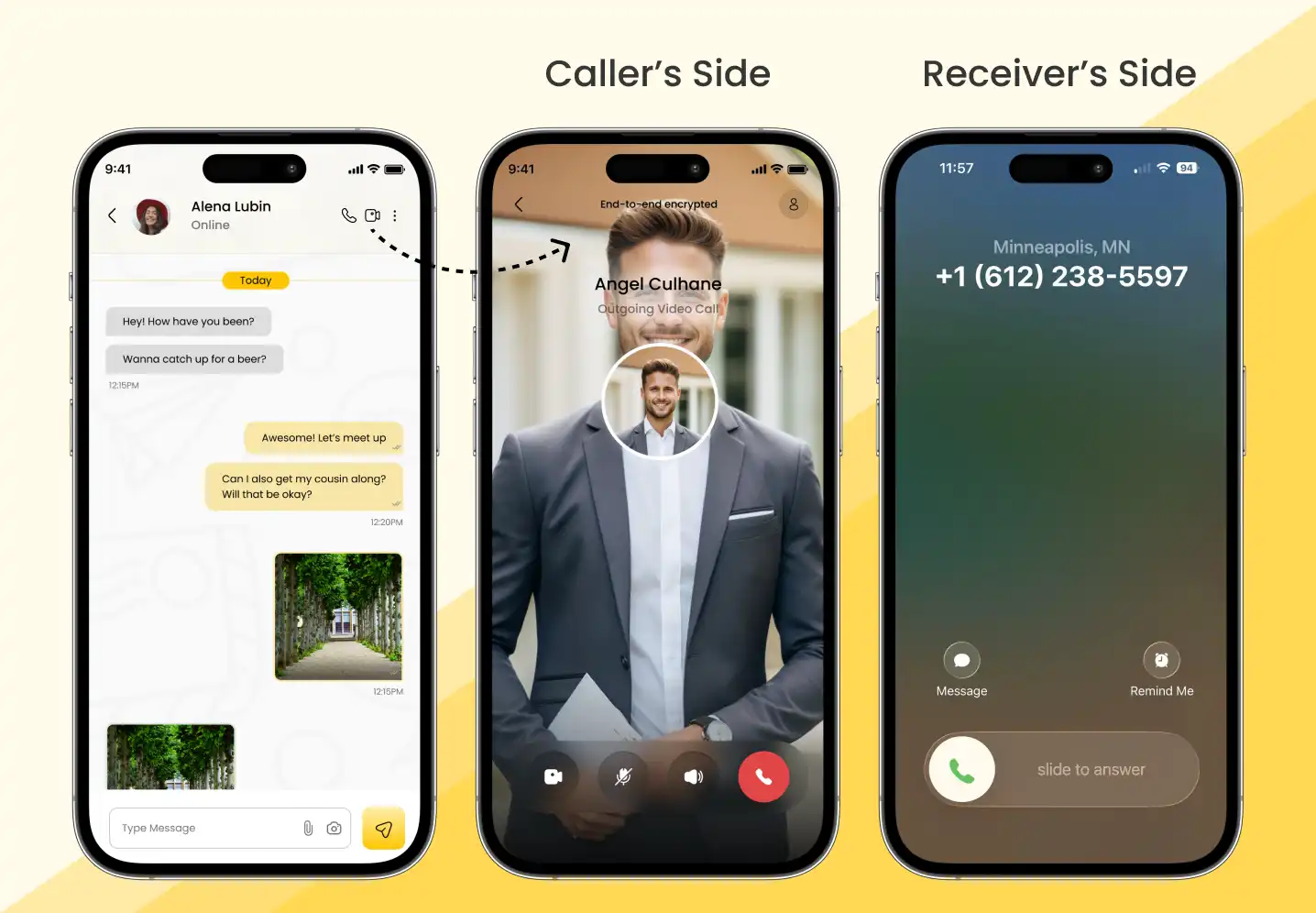
What It Looks Like — iOS & Android VoIP Demo
One video showing both platforms — iOS CallKit lock screen and Android native incoming call UI, exactly as users see it in WasaaChat.
iOS CallKit + Android — Live Demo
CallKit Flutter Killed App — Common Issues & Fixes
| Symptom | Platform | Cause | Fix |
|---|---|---|---|
| No ring when app killed | iOS | Using APNs instead of PushKit | Send to .voip topic with VoIP cert |
| App crash on VoIP push | iOS 13+ | completion() called before reportNewIncomingCall | Call showCallkitIncoming FIRST, then call completion() |
| No ring when app killed | Android | Sending notification message instead of data message | Remove “notification” key — only send “data” |
| Call screen not full screen | Android | Missing USE_FULL_SCREEN_INTENT permission | Add permission + request runtime on Android 14+ |
| Calls not ringing on Xiaomi | Android | OEM kills background services | Guide users to grant Autostart permission for app |
| Custom ringtone not playing | iOS | File is not .caf format | Convert with afconvert to CAF format |
| VoIP token not refreshing | iOS | App crashed on previous push (iOS 13 rule) | Fix the crash → new token auto-generates on next launch |
| CallKit banned in China | iOS CN | Apple blocks CallKit in Chinese App Store | Detect locale + fallback to FCM notification for CN users |
“The native call screen is not just a UI preference — it’s the difference between users answering your VoIP calls and missing them. PushKit on iOS and FCM data messages on Android are the only mechanisms that wake a killed app reliably. Everything else is a workaround that breaks under real-world battery conditions.”
We’ve Built This in Production — WasaaChat & ChatWave, Live on Both Stores
This guide describes exactly what Primocys implemented in WasaaChat and ChatWave — two live Flutter messaging apps on both the App Store and Google Play with self-hosted WebRTC and native VoIP call screens. If you need a Flutter developer who has shipped this code to real users, that’s us.
Live apps, not mockups
WasaaChat + ChatWave on App Store + Google Play. Download and test before hiring.
Self-hosted WebRTC
Zero per-minute API fees. Your own servers. Our production architecture.
Full VoIP stack
CallKit, PushKit, ConnectionService, FCM — all implemented and tested on real devices.
Flutter Top Developer
Clutch Top Flutter Developer 2024 & 2026. One codebase, both stores.
Fixed-price contracts
Full scope agreed before development starts. No hourly surprises.
E2E encryption
Signal Protocol built into WasaaChat. Same stack available for your app.
Conclusion: Flutter VoIP App Development Company India — Built in Production
Getting the flutter voip incoming call screen right on both iOS and Android is genuinely one of the harder cross-platform implementations in mobile development — not because the logic is complex, but because the platform requirements are strict, underdocumented, and punishing when you get them wrong. The iOS 13 rule alone (report the call to CallKit before calling completion, every single time) has broken production apps that shipped without it. The FCM data-vs-notification distinction on Android has caused more “why doesn’t it ring when the app is killed” support tickets than any other single mistake.
This is the implementation Primocys runs in production on WasaaChat and ChatWave — real apps, real users, real devices. If you’re building a flutter voip app like WhatsApp or a real-time calling platform and you’d rather hire Flutter VoIP developers who’ve already solved these problems in production than solve them yourself, that’s exactly what we do. India-based Flutter VoIP development delivers the same CallKit, ConnectionService, and self-hosted WebRTC architecture at 60–70% lower cost than US agencies.
The single most common reason VoIP calls don’t ring when the app is killed: On iOS: you’re using a regular APNs push instead of a PushKit VoIP push. On Android: you’re using an FCM notification message instead of an FCM data message. Fix both of those and 80% of “it doesn’t ring when killed” bugs resolve immediately. The remaining 20% are OEM-specific battery optimization issues on Xiaomi, OnePlus, and Samsung that require user-side whitelisting. Need help? Talk to our Flutter VoIP team →
FAQs: Flutter VoIP Incoming Call Screen — iOS CallKit & Android
How do I show the native incoming call screen in a Flutter VoIP app on iOS?
How do I show the native Android call screen for VoIP in Flutter?
What is the best Flutter package for VoIP incoming call screens in 2026?
Why does my Flutter VoIP call not ring when the app is killed on iOS?
Can I hire Flutter VoIP developers from India to build a WhatsApp-like calling app?
Related Articles

Build your scalable apps today.
Contact UsLeaving Already?
Hear from our clients and why 1200+ businesses trust Primocys

"Our B2B and B2C platform helps Nigerian manufacturers sell at wholesale prices and suppliers offer competitive retail pricing, with a strong focus on Made in Africa products and easy local and international distribution. The app has received excellent user reviews for its design and unique features. Communication with the Primocys team was smooth in an agile setup, even beyond office hours when needed. Their mobile app development expertise is excellent—highly professional and reliable."

"The dating app was delivered successfully and approved by both Apple App Store and Google Play. Our users are highly impressed with the design, UI, and overall functionality. The project was well planned with clear milestones, and all modules were delivered on time. The team is talented, patient, and flexible, accommodating multiple scope revisions as requirements evolved. Their 24/7 development and support availability made the entire process smooth and reliable."

" We hired Primocys to develop a highly complex and specialized mobile application, and they delivered outstanding results. The app includes advanced features such as timeline mixers, classifieds, payments, advertisements, GPS functionality, and more. Their technical skills, timely delivery, availability, and the personal attention Arpan Sagar brings to each project truly stand out. The team stays focused and committed from start to finish—an excellent experience overall."

" Great team with excellent communication and a strong commitment to on-time delivery. They developed a fully customized mobile app for both Android and iOS, perfectly matching our requirements. The entire process was smooth and professional, with clear updates at every stage. They are reliable, skilled, and very easy to work with. We’re continuing our partnership on more projects, and choosing them has been one of the best business decisions I’ve made."

AWARDS




Share Your Requirements
TRUSTED BY GLOBAL BRANDS